



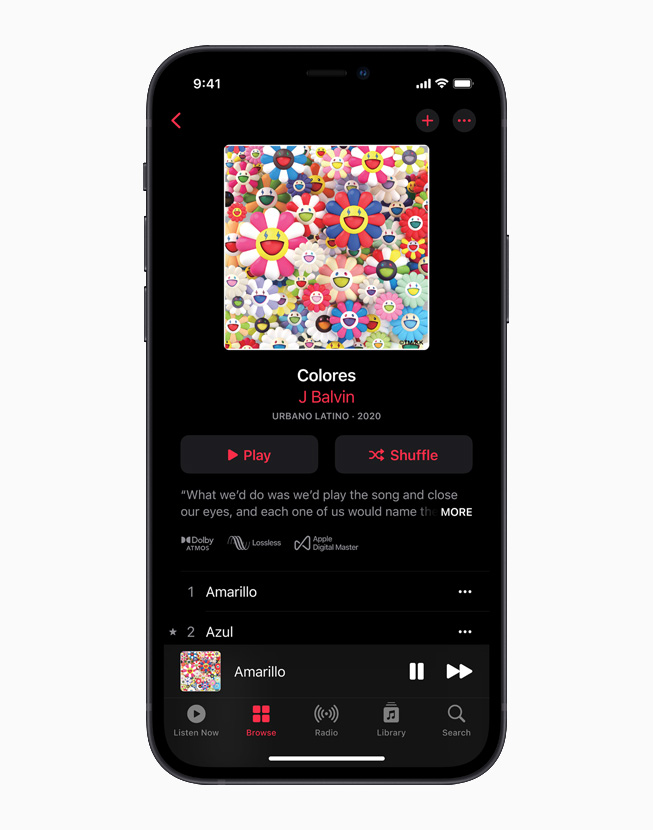
There are two jobs hiding behind “turn on lossless”. One is changing a setting. The other is checking what happens between the app and your ears. You can finish the first job in a minute and still have the second one unresolved.
Start by writing one line: device, headphone model, connection. “iPhone, wired headphones, USB-C adapter” is a useful description. “Apple Music with AirPods” leaves out which AirPods and which host device. That missing detail can change the answer. We have not tested these combinations; the requirements below come from Apple's support document, checked on 10 October 2026.
The same accessory is not required everywhere
| Situation | What Apple's documentation establishes | What follows |
|---|---|---|
| iPhone or iPad, sample rate above 48 kHz | An external DAC is required | Check the complete supported wired arrangement |
| A specified 14-inch or 16-inch MacBook Pro | Native playback up to 96 kHz is supported | The iPhone threshold alone is no reason to buy a DAC |
| An album downloaded before enabling lossless | The older download needs replacement | Changing the setting is not the final step |
Apple specifies an external DAC for iPhone or iPad playback above 48 kHz. Its instructions separately identify native playback up to 96 kHz on specified 14-inch and 16-inch MacBook Pro models. Those are capabilities, not a promise that a particular recording will sound better. The bitrate and sample-rate guide explains the numbers.
Imagine moving your headphones from that Mac to an iPhone. Nothing about the headphones has changed. The output arrangement has, so repeat the check at the new device. It is easy to mistake the largest number in a shop listing for the one missing part of your setup.
An old download does not change with the switch
On iPhone or iPad, Apple's path is Settings → Apps → Music → Audio Quality. Streaming and download quality have separate selections. For music already downloaded, Apple says to delete it and download it again after enabling lossless.
Use one album as a rehearsal. Note its old download size, the new quality selection and the size after the replacement has finished. Leave a space for each number rather than borrowing someone else's storage estimate.
| Your one-album record | Fill this in on your device |
|---|---|
| Exact album and edition | Artist, title and release |
| Old download size | Before removal |
| New download quality | Your selected setting |
| New size | After download completion |
| Available space | Space left for the rest of your selection |
This is our worksheet, not a storage measurement. If your own trial produced a 0.7 GB album, thirty albums of that same size would occupy 21 GB. Real albums vary, but that conditional calculation gives a more useful planning figure than multiplying an unverified claim across your library.
Check the exception that actually names your headphones
Apple distinguishes ordinary Bluetooth from particular supported Vision Pro headphone combinations and USB-C arrangements for specified AirPods Max models. Software and firmware requirements accompany those exceptions. Match your equipment line to the relevant section of its document before buying a cable.
Then try an album you know. A working lossless path and a preference for that path are separate questions. Our ABX comparison guide explains why matching playback level matters when comparing encodings; a new setting alone is not a listening result.