




Is it a hiss or a hum?
A faint hiss with your ear close to a powered monitor is one thing. A buzz you can hear from your chair whenever the music stops is another. Genelec says a low, steady hiss can be audible near an active speaker in a quiet room because its amplifier produces some noise of its own. Describe what you hear and where you hear it before calling it a fault. Genelec’s note on speaker hiss
Does the buzz come from one monitor or both? Does it change when you move the mouse? Focusrite includes noises linked to computer activity among the symptoms its interface users may hear. If you can repeat the noise at a modest listening level with playback paused, keep that as your starting condition for the next check. Focusrite’s monitor noise guide
What if the headphones sound quiet?
Try the headphone socket on the same interface, if it has one. Leave the other devices connected. A buzz you can hear in the monitors but can’t hear in the headphones gives you a reason to look at the connections leading to the speakers. If it’s audible in both places, look at the equipment and connections the two paths share. Keep these comparisons to ordinary external audio connections.
How do I know which change mattered?
Imagine an interface feeding two monitors, with a mixer connected to the interface. Both speakers buzz at idle. Turn the levels down and follow the equipment manuals when removing the mixer’s audio link. Restore the original modest listening level for the comparison. To test whether the result repeats, lower the levels again, reconnect the link and listen once more.
A note from that comparison could read: “Mixer connected, both speakers buzz. Mixer audio link removed, both quiet. Link restored, both buzz again.” That tells support more than “I unplugged some gear”. It identifies a repeatable change involving the mixer connection. You can use the same format if the noise stays put. Write down the actual outcome so that you don’t keep going back to a test you’ve already done.
Focusrite also describes comparing battery operation with ordinary charger operation on a laptop. If you try that, keep the rest of the setup in place. Changing the laptop’s charger state and the speaker cables together would make a quieter result hard to trace. Leave the mains plugs, protective earth and equipment cases intact.
Will a balanced cable help?
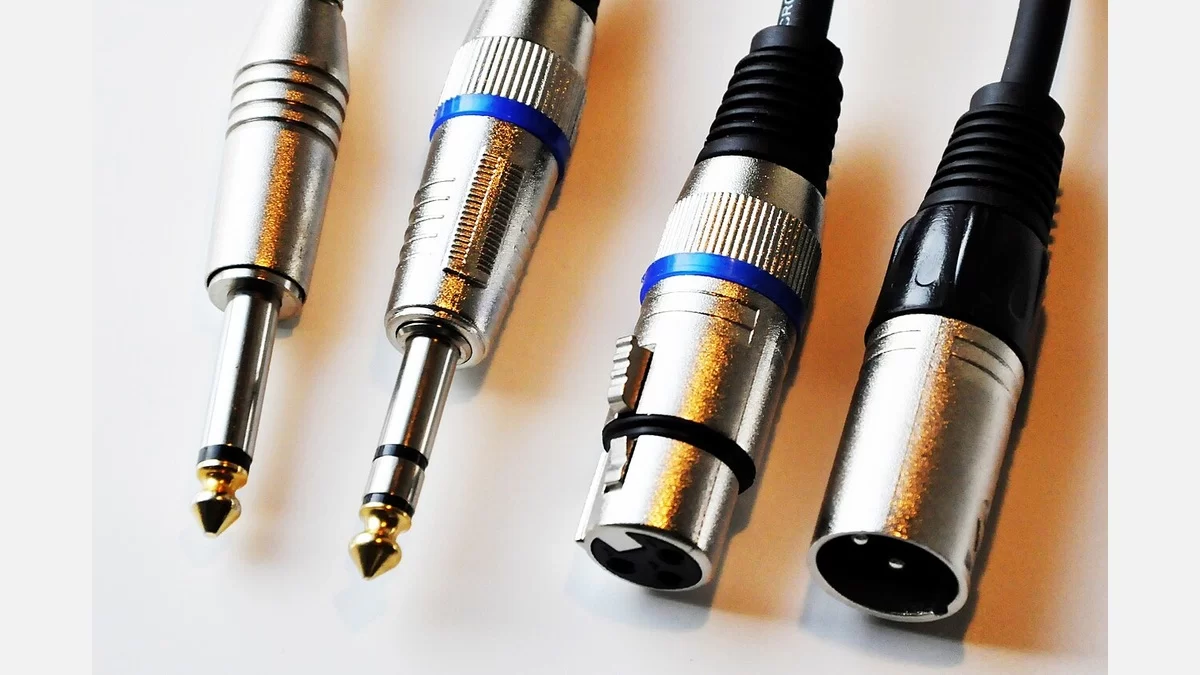
Read the specifications of the output on your interface and the input on your monitor. If both are balanced, the appropriate balanced cable can help reject interference. If the route starts with an unbalanced RCA connection, an XLR plug at the other end won’t make it balanced. Focusrite’s cable examples
If a jack looks familiar, check what the manufacturer calls it. A headset connection and an interface output may use similar-looking plugs for different jobs. MP3Raid’s TRS and TRRS port guide
The practical thing to take to support is a short example you can reproduce. Include the models, the port labels and where you heard the noise. The comparisons here come from manufacturer guidance, and any diagnosis depends on what happens with your own equipment.