



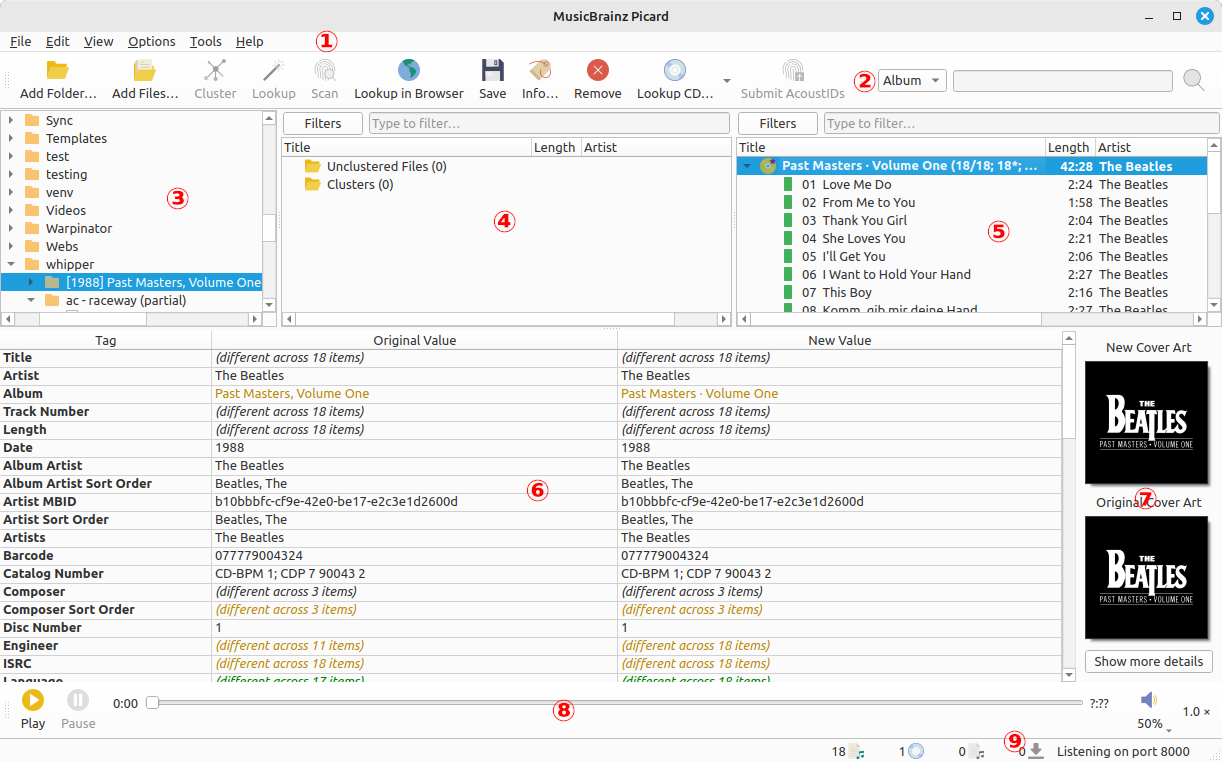
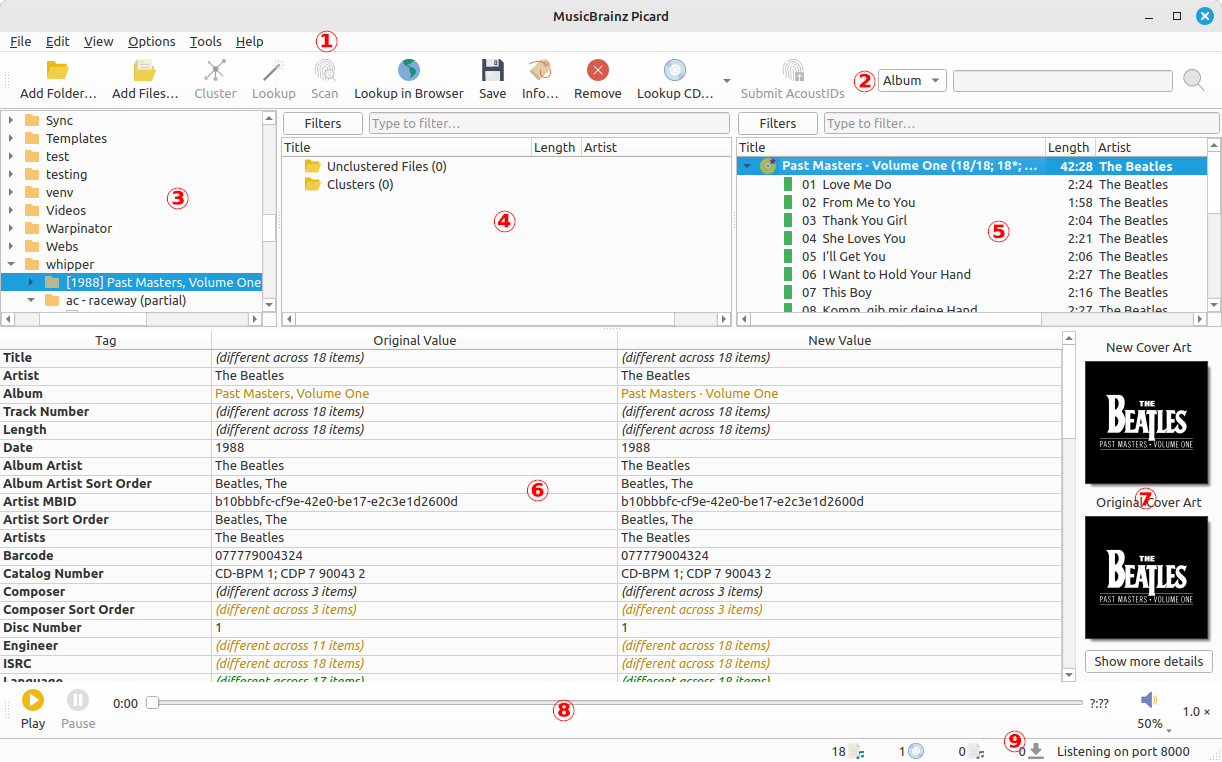
You've moved an album to your phone, and its cover has disappeared. Picard still shows the picture on your computer. Before downloading it again, check what actually travelled: the music file, a separate image, or both. Artwork stored inside a track and artwork sitting beside it can behave differently once that album leaves its folder.
This is a source-based troubleshooting guide using Picard's current documentation. Menu wording can vary with the installed version, and the receiving player's own artwork support still matters. The aim is to diagnose one copied album before changing the originals.
Two storage choices, two different journeys
Picard's cover-art options separate embedding images into tags from saving images as separate files. Both options can be enabled. Embedding puts artwork in an audio file's metadata; saving externally writes an image such as cover.jpg into the directory.
Imagine moving one MP3 out of its album folder and sending it to another device. Embedded artwork travels with that file, provided the destination understands its tags and image. A folder image cannot travel with the track if you leave it behind. Even when copied, the player must recognise that filename and location.
That gives you a useful first question: did the transfer include only tracks, or the tracks and their folder image? It is more informative than immediately downloading a different cover. If the album itself was matched incorrectly, first follow our Picard library-organising guide to check the release identification.
Try two copies before a batch change
Copy A: artwork inside the tracks
Make a disposable copy of one album in a clearly named test folder. Keep your original files elsewhere. In Picard, enable embedding and disable saving separate images for this test. Select the intended cover, save the copied tracks and reopen one file to check its artwork. Transfer a copied track to the destination without bringing a folder image.
If the destination displays the cover, you have a working embedded route for that file and player. If it does not, check the player's supported tags and artwork limits before concluding that Picard failed to save anything.
Copy B: artwork beside the tracks
Use a second disposable copy. Disable embedding and enable saving a separate image, using the filename your player documents. Picard adds the image extension; its filename field does not need .jpg typed into it. Keep the audio and the saved image together during transfer.
Copy B must have no embedded picture, or the test cannot isolate the folder image. Turning embedding off does not remove artwork already there. Picard documents a Remove cover images from tags option that works when embedding is disabled and the images are also being saved as separate files. Use it only on the disposable copy, check the Album Info dialog and reopen the saved file to verify removal. Leave your original album untouched.
Write down the app version, format, settings and result for each copy. Restore your usual settings afterward. We have not tested your device, so treat a successful track as a starting point for a small batch, not a reason to rewrite the whole library.
Use the symptom to choose the next check
| What you observe | What to check next |
|---|---|
| Picard cannot find a cover | Enabled provider, correct release and available artwork |
| Picard shows a cover; the player does not | Saved file, supported tags, image limits and transfer contents |
| The cover works only in its album folder | Whether the player depends on an external image |
| A newer picture will not replace an older one | Replacement protection and selected image size |
The official missing-artwork troubleshooting page distinguishes unavailable images from player compatibility and image-size problems. Work through that branch of the problem instead of repeatedly changing the album match.
Picard's processing documentation also explains why a smaller downloaded image may not replace an existing larger one when protection is enabled. For example, requesting a 500-pixel image while protecting an existing 1,200-pixel cover can leave the old picture in place. Before trying another download, check that protection rule and the requested image size. The old picture may be staying exactly as the settings require.
Size the artwork for its destination
Embedding can repeat the same image across many tracks. In a hypothetical 150-track collection, a 200 KiB image stored once per track adds roughly 29.3 MiB of image data. One external copy of that image is about 0.195 MiB. This is arithmetic for the pictures alone, not a measurement of your library or its complete metadata overhead.
The smaller option is only useful if the destination reads it reliably. Picard offers separate processing settings for embedded and external images, so storage size need not force the same choice everywhere. Keep a suitable original, consult the player's documentation, and test the intended export. Once you know which route your player reads, use that result to choose the export settings for the rest of the collection. Keep the two test copies and their notes until you are satisfied with the small batch.