



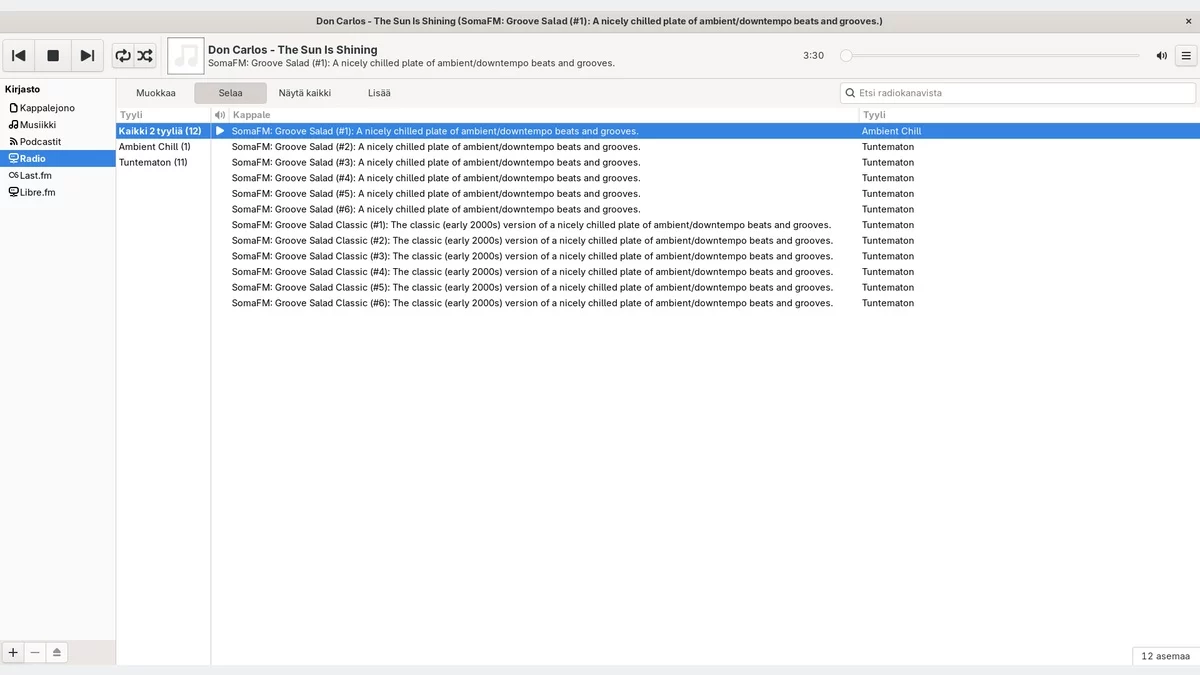

You import an album and want its songs to show up in a rotation without dragging them into a playlist. That's a good reason to use an automatic playlist in Rhythmbox. You give it a rule, and the library supplies the tracks that currently meet it. For a sequence you handpicked for a party or a friend, keep a regular playlist. You can use both types in the same library.
Make a rule you can check by eye
Start with a couple of songs you can already find in the Rhythmbox library. Pick one that should belong to your list and a second you expect to stay out. If you want a rotation of favorites, give the first a high rating and leave the second unrated. You could also use an easily recognised artist tag. The important part is knowing which one ought to pass before you open the editor.
The Rhythmbox user guide in GNOME's project repository describes the automatic playlist command and its query editor. The exact menu wording can vary by build and language. Look for New Automatic Playlist in the playlist controls, then add a condition for the rating or artist you chose. Create the list with just that one condition and no limit. Read the titles in the new list. You should see the first track and have to go back to the library to find the second. If both made the list, read the condition one more time before adding anything.
Give the list one change to react to
Change the second track so it now meets the condition, then look again. In a rating-based list, that's as simple as giving the second song a qualifying rating. A rule-based list is meant to reflect changes to library tracks. The Rhythmbox project treats playlists as part of a local music library, so first check that the track you edited is actually the one in the library. Two copies of an album can make a test confusing if you're looking at one file and changing another.
Once the one-rule version works, add a second condition only if you know what it should do. For instance, if you want rated tracks from a particular genre, choose a track that satisfies both conditions and another that satisfies only one. Your two tracks now tell you whether the second condition narrowed the list as expected. An empty list after adding Genre gives you one field to investigate. Take the condition out and read the genre on the track that should have passed. A spelling difference in a tag is easier to spot when you have one track to check.
Put a limit on it after the rules work
The query editor documented by GNOME can limit a list by track count, duration or total size. Choose a count if you want a short queue of songs. Choose duration if you have about half an hour to listen and the exact number of tracks matters less. Turn any limit off while diagnosing one missing song. If the song appears again, it can pass the rule, and the next thing to review is the limit and the sorting used to fill it.
The rule belongs to your library. The songs still live on disk. The library still needs the audio files in reach. If you're moving computers, make a copy of those files before relying on a list to recreate your setup. Our VLC playlist backup guide explains the same underlying distinction for ordinary playlists. Keep a static list where you care about the exact order. Use the automatic one for a rotation you expect to change, and check it with a known match whenever you add a rule.