



Spotify's Loud, Normal and Quiet options sound simple until the phone is controlling a speaker elsewhere in the room. You may be looking at the right setting on the wrong playback device. Start there before deciding that normalization is broken.
Change one thing at a time. Turning off normalization, adjusting the equaliser and switching headphones together makes it difficult to identify which change helped.
What normalization is trying to do
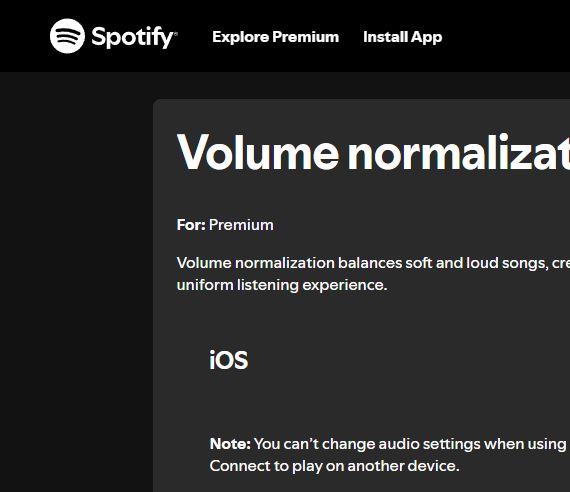
Spotify's instructions identify normalization as a Premium feature. On iOS and Android, look under Settings and privacy, then Playback; the desktop control is under Settings and Audio Quality. Normal is the default, Quiet suits quieter surroundings and Loud is intended for noisy ones, with less dynamic levels in that mode.
The mobile instructions contain a useful exception: audio settings cannot be changed there while Spotify Connect is playing on another device. Check where playback is happening before hunting through the menus again. Follow the linked support page if your installation has changed since our 9 October check.
Normalization, equalisation and encoded bitrate are different subjects. The first concerns level behaviour; an equaliser changes the balance of frequencies; bitrate describes a data rate. A single application may put them near each other in settings, but proximity does not make them interchangeable.
Our audio-units guide explains the technical labels. Here we are investigating a smaller question: why you keep reaching for the volume control.
Use a short set of tracks
Pick two or three familiar recordings that expose the problem. Keep the same output device, connection and equaliser arrangement throughout the check. Begin at a comfortable level, and reduce it if the next recording is unexpectedly loud.
Note which track seems louder and when the jump occurs. A change between services, a move from one device to another and a change within one playlist are different cases. Give the note enough detail that you could repeat the check tomorrow.
| Keep fixed | Record separately |
|---|---|
| Headphones or speakers | Which recordings you opened |
| Output connection | Whether the source was streamed or local |
| Equaliser setting | Normalization state and available level option |
| Listening position | Where the level jump occurred |
This is a worksheet for your observations, rather than measured MP3Raid test results.
Change one control
Inspect the applicable normalization setting. Make one change, replay the short selection and write down what happened. If the result is less comfortable or confusing, return to the previous arrangement before trying something else.
Do not turn the level up to force a difference to become impressive. You are checking whether transitions are easier to live with, not trying to maximise the impact of the loudest passage.
Keep local files in a separate case
Your local player may use stored loudness metadata such as ReplayGain. A service's normalization control does not necessarily determine how that other player interprets the files. If the problem appears only when moving between them, inspect both arrangements.
The ReplayGain explainer separates metadata stored with files from a player's behaviour. It also explains why writing gain information and permanently applying a change to audio are decisions to distinguish.
What a preference can tell you
You may prefer more consistent transitions for a mixed playlist and a different arrangement for an album session. Note the use case with the preference. “This is easier during my playlist” is more informative than “this setting is objectively correct.”
For a controlled codec comparison, level differences need particular care. Our ABX guide explains how to prepare suitable sources and record the conditions. A casual settings check serves a different purpose: finding an arrangement you can use comfortably.
If the jump remains, inspect the exact recordings and playback route before making a purchase. Different releases or devices can complicate the picture. The short notes you made will help identify that complication, and they cost less than replacing equipment to solve an unexplained setting problem.