



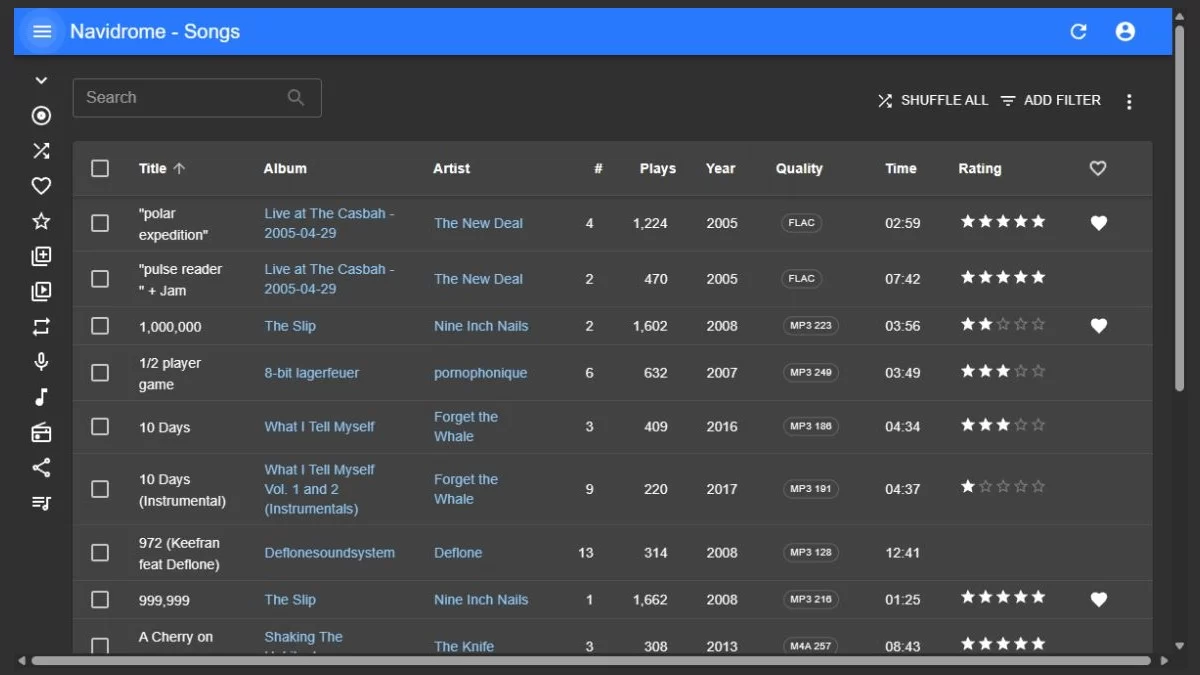
You can find out quite a lot about Navidrome before you install it. The project runs a public demo with a sample library and a browser player. It also accepts compatible Subsonic clients. That gives you a way to answer two questions separately. Can you find music easily in the web player? Is there anything you need on a phone or desktop that would send you looking for another app?
Start with one song in the browser
Open the demo from the project’s page and use the sign-in details displayed there. The site opens a music collection you can browse. In the sidebar, choose Songs and use the search box. One result we checked in the demo is “1,000,000” by Nine Inch Nails. Look for The Slip in the album column. Three pieces of information identify this particular example, which is useful if you want to look for the same track somewhere else.
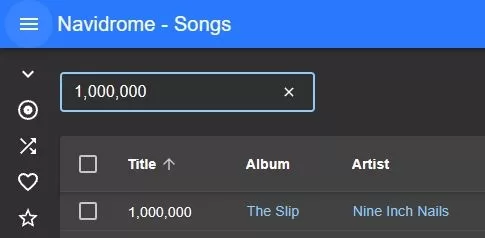
The unfiltered Songs view also has “999,999” from The Slip. It shows that as track 1 and “1,000,000” as track 2. If the title looks ambiguous, use the album link next to the result to see where the track belongs. When you try another player with the demo, the album and artist give you a better footing than a title by itself. The Navidrome overview explains why that works. A Navidrome server can run the built-in web interface, or it can provide a compatible service for another app. Both can show music from the same server library.
Add a client when you have a reason
Suppose you can find your music easily on the web and mainly listen at a desk. That’s already an answer to whether you need another desktop player. If there’s a feature you want on a phone, open Navidrome’s client directory and start with your platform. Search for the feature separately. For example, choose iOS and enter offline in the search box. That’s a way to narrow a long list before you read the details for one app.
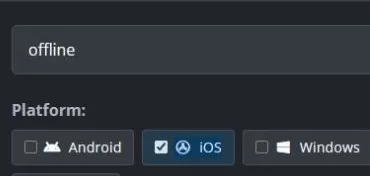
Check the app’s own documentation for what offline means. One client might offer downloads you choose before a trip. Another might describe a cache for recently played music. Those are different features to test. Compatibility with Navidrome is the starting point. You still want to know whether the app can do the thing that made you look for it.
If you already have a compatible client, use the demo address and credentials shown on the project site. Search the same library for the song you found in the browser. Find the track, then work back to its album. That tells you something about navigation that a successful sign-in can’t. For offline listening, check the app’s documentation for how to download a track and how to tell that it’s actually saved before disconnecting.
What still depends on your own setup
The public demo has some settings disabled. Its music is also someone else’s sample library. Use the demo to decide whether you like the search, the album view and the steps to reach a song. Save the next tests for your own setup. A few tagged albums are enough to see how your library sorts before you import everything. If you’ll listen away from home, try the actual server and client on that connection. The demo is already reachable over the internet, so it can’t tell you how your own network will behave. MP3Raid’s audio guides cover the listening and file questions that come next.