



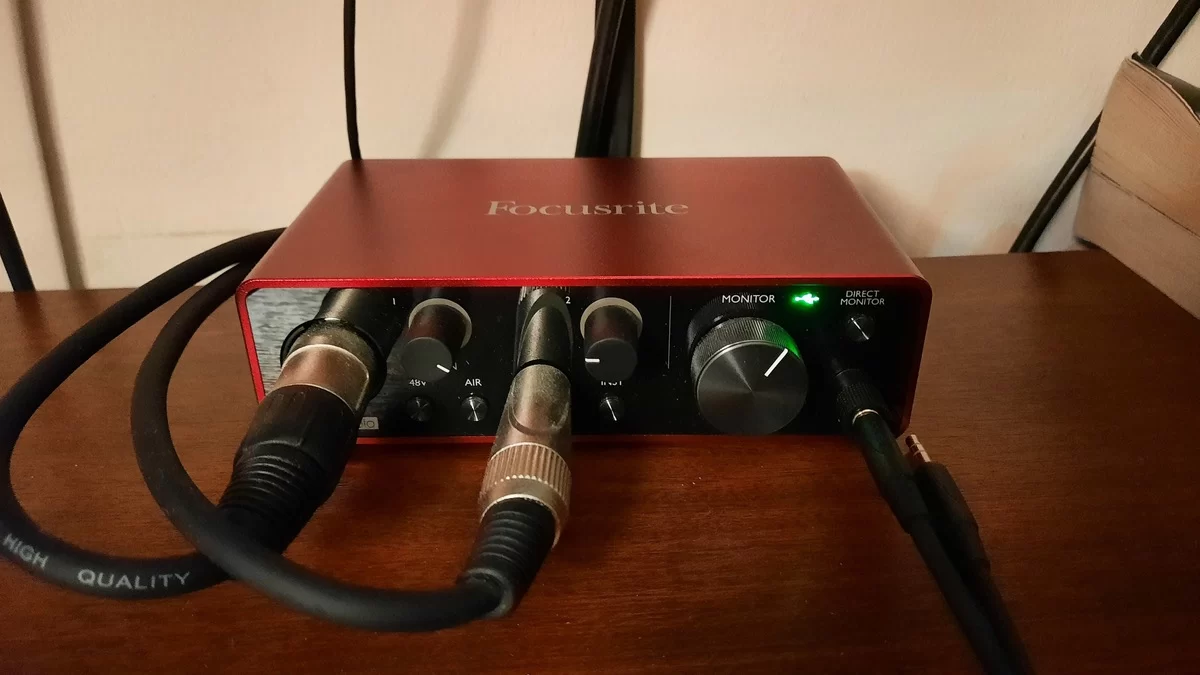
When your voice arrives late in the headphones, the buffer is one place to look. First check whether you are hearing the microphone directly from the interface or listening to its return from the recording software. The second route includes the computer and any effects you have placed in that path.
Below, we calculate the time occupied by an audio buffer and use Ableton’s documentation to explain what lies outside that number. MP3Raid has not measured an interface or run a recording test. The photograph illustrates equipment only.
What does 128 samples mean at 48kHz?
At 48kHz, the system handles 48,000 samples each second. A chunk of 128 samples therefore occupies 128 ÷ 48,000 seconds: about 0.00267 seconds, or 2.67 milliseconds. Dividing by 48 instead gives the answer in milliseconds straight away.
That is the single-buffer calculation described in Ableton’s latency documentation. These are our rounded results at the same sample rate:
| Buffer size | One buffer at 48kHz |
|---|---|
| 64 samples | 1.33ms |
| 128 samples | 2.67ms |
| 256 samples | 5.33ms |
| 512 samples | 10.67ms |
Suppose you change from 128 to 512 samples without changing 48kHz. You have made each chunk four times as long. One buffer stage increases by about 8ms. In a simplified calculation with two equal stages, one for input and one for output, their combined buffer duration would go from roughly 5.33ms to 21.33ms.
Treat that as a comparison of buffer durations. A real recording path also includes converters, a driver and potentially delayed processing. Ableton also notes that some interfaces report their latency inaccurately. Those extra stages prevent us from using the table as a round-trip benchmark. Check your units when working out your own values: seconds and milliseconds differ by a factor of 1,000.
Pick a monitoring path for the recording pass
A digital audio workstation, or DAW, is the recording application. With software monitoring, your microphone signal enters it and returns through the output. A software piano starts its audio inside the computer instead. Playing a finished recording is another situation: you are not waiting for a freshly played note or sung syllable to catch up with your actions.
If your interface offers direct monitoring, check its manual for the routing. You may be able to hear the microphone without sending that cue through the DAW. You will then be listening through a different path from the one containing your software effects. Decide whether you need those effects in the cue before choosing this option.
For software monitoring, write down the current buffer before lowering it. Try recording with the smaller setting. If the audio breaks up or drops out, restore the previous value. Ableton links this tradeoff to CPU load: smaller chunks leave less processing time. Reliability matters more than reaching the bottom of the menu.
What to check when a smaller buffer is not enough
Use a wired listening connection for this diagnosis. Ableton’s troubleshooting advice identifies Bluetooth and wireless casting as additional sources of delay. A DAW setting cannot shorten every part of that separate transmission.
On Windows, check the selected audio driver as well. Ableton recommends the interface’s ASIO driver over the default MME/DirectX path for low buffer sizes. Follow the manufacturer’s setup instructions for the device you own.
Then inspect the effects chain. A lookahead process deliberately delays the signal so it can act on information ahead of the current playback position. Save a copy of the full mix before making a simpler recording setup; you can return to it after the performance. When you are mixing existing tracks, a larger buffer may be the more useful choice for keeping a demanding project playing steadily.
There are two adjustments worth keeping apart. Sample rate is different from bit depth, as our audio settings guide explains. Recording alignment is also different from headphone response. Ableton says Driver Error Compensation changes where recorded material is placed, not real-time latency. Moving a waveform on the timeline afterwards cannot change the delay heard during the take.