



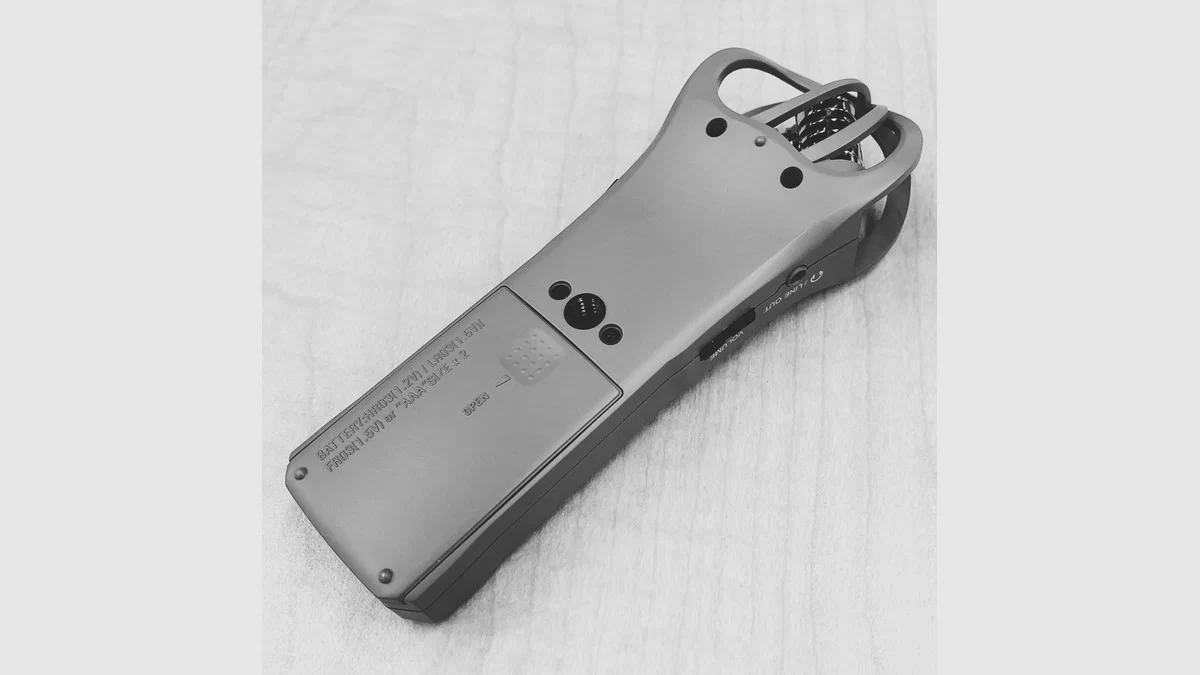
Suppose you’re recording the band for an hour and the guitar player wants the WAV that night. At 48 kHz and 24 bit, a stereo recording on a Zoom H1n comes to just over a gigabyte. At 96 kHz, you have just over two to send. Pick the rate for the project before you worry about the size. The figures below are calculated from the format Zoom documents. MP3Raid did not physically test the recorder.
Where the extra gigabyte goes
Zoom lists 44.1, 48 and 96 kHz WAV options up to 24 bit on the H1n. It also offers MP3. Here we’re calculating uncompressed 24-bit stereo WAV files from the built-in X/Y microphones. Stereo gives you two channels. A 24-bit sample takes three bytes per channel. At 48 kHz, multiply 48,000 samples per second by three bytes and by two channels. That comes to 288,000 bytes per second. Multiply again by 3,600 seconds for roughly 1.04 GB in an hour. Zoom’s H1n product information.
Leave it at 24-bit stereo and record just the last twenty minutes. There’s about 346 MB to copy at 48 kHz and 691 MB at 96 kHz. Why almost exactly twice as much? Both settings write the same number of bytes for each sample, and 96 kHz takes samples twice as often. The 44.1 kHz choice comes to about 0.95 GB for an hour. These are decimal sizes for the audio data. There’s a small header on the WAV file too. An MP3’s size depends on its encoding settings.
What will you do with the WAV?
Say the editor tells you the video project is at 48 kHz. Set the H1n to match, then give the recorder and the camera a few seconds of sound together. Clap once near the start. Later the clap shows up as a spike in both waveforms, so you have something precise to line up before you listen.
When you send a rehearsal, ask if the band wants to play it back or pull a section into a new project. For listening, make a smaller copy and keep the WAV. Send the original to the person who wants to work on it. On this recorder, a twenty-minute 96 kHz take is about 345 MB larger than the same length at 48 kHz. That extra data stays in the file you’re handing off.
When a collaborator asks for 96 kHz, send a short file at that rate before the session if you can. It gives you both something to open and confirms the handoff works. Sample rate is also a term you’ll see in interface buffer settings, where the same numbers affect timing differently. Our guide to audio buffer sizes explains how to calculate that interval.
A short check before you press record
Leave the selected format alone while you look for a place to put the H1n. Record the loudest part you expect to hear from that position, stop and play it back. If the playing drowns out a quieter voice, change the recorder position and repeat the same passage. If the input overloads, adjust the level and record again. Those changes deal with the sound going into the recorder. A switch to 96 kHz won’t give you a different position in the room.
When the test sounds the way you want, confirm the file format and the remaining space. Leave space for the count-in and the talking after the take. That’s a useful margin when the recorder will run through the whole rehearsal.