



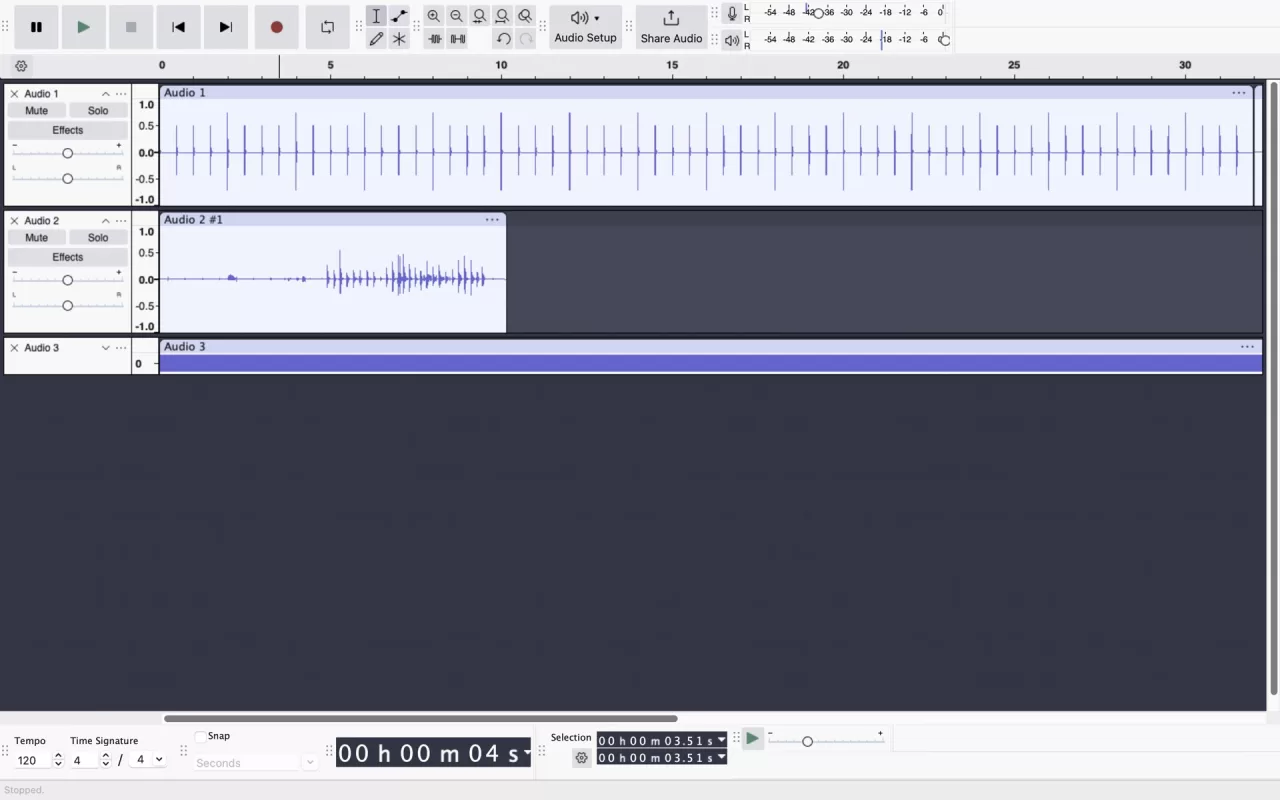
If you choose “Split Stereo to Mono” in Audacity and get two tracks, the command has done its job. It separates the left and right channels and centres each one. It does not combine them into one mono track. For that, Audacity has a different command: “Mix Stereo Down to Mono.”
Which one you need depends on what is inside the recording. A music mix with instruments spread across two channels needs different treatment from a file containing an interview microphone on one side and unwanted noise on the other. Start by deciding what to keep.
This is a source-based guide to the operations documented in the Audacity stereo-track manual and Tracks: Mix reference. Menu labels can differ between releases. The cover shows the older 3.6 interface for illustration; it is not a record of our testing.
First, preserve a way back
Keep the source file and work in a separate project copy. Before changing anything, listen to the channels individually and name them for their contents. “Interview mic” and “room noise” are more useful labels than “Audio 1” and “Audio 2.”
Here is a hypothetical example: a recorder has put a speaker’s microphone in the left channel and an unused input in the right. Averaging both channels would retain the unwanted side. Separating them lets you keep just the microphone. With a finished stereo song, however, discarding the right channel could remove material you wanted.
Those are different editing decisions. A stereo label alone cannot tell you which is appropriate for your file.
Keep one original channel
Open the audio track’s dropdown menu and choose “Split Stereo to Mono.” Audacity makes two independent tracks, with both panned to the centre. Identify the one you want before closing the unwanted track with its X button. Play the remaining track and check that it contains the complete material you meant to keep.
There is a nearby command called “Split Stereo Track.” It also separates the channels, but leaves the original left channel panned fully left and the right channel fully right. Choose it when you want separate editing while preserving those positions. It is not the same starting point as two centred mono tracks.
In the hypothetical microphone recording, retaining one centred track solves the one-sided content problem. It does not reconstruct anything that was missing from the original microphone signal, and it is not a method for recovering a full stereo mix from half of one.
Combine both sides into one mono track
When you want the content of both channels together, use Tracks > Mix > Mix Stereo Down to Mono on the stereo track. Audacity documents this as an equal combination, averaging the two channels. Existing gain, pan and amplitude-envelope settings are rendered into the result.
The command expects a stereo track. The manual says it is unavailable when the channels are split, or when their start or end positions differ. If you already split the channels, check their alignment and rejoin them before attempting this operation.
Listen to the resulting mono track before exporting. Do not use the file extension as proof that the channel arrangement is right: choosing MP3, for example, does not describe which material you kept. Our audio-format guide covers that separate choice.
Rebuild stereo without losing your decisions
“Make Stereo Track” joins the upper track as the left channel and the lower as the right. Audacity warns that this operation does not preserve the two tracks’ separate gain, pan and envelope decisions in the way a rendered mix does. Rejoining is therefore a poor final step if you have carefully balanced those controls.
For a mix that incorporates them, use Mix and Render. Its “to New Track” variant keeps the original tracks as well as creating the mix, which is useful for a comparison before committing. Check the selection carefully: the manual explicitly says selected muted tracks are included too. Muting an unwanted track is not sufficient to exclude it from that operation.
Before you export, make three checks:
- Are you retaining one source channel or combining both? Confirm the result by listening.
- If you rendered several tracks, did the selection include only the tracks you intended?
- Have you kept the untouched source and a clear name for this edited version?
Save those decisions with the project. The next time you open it, you should be able to tell why the file became mono, not merely that it did.